
KeyboardAnalyzer Online Keyboard Tester: Check Keys, Codes, and Mouse Input
Developer & API ToolsDescription
Free online keyboard tester for Windows, Mac, and laptops. with practical details for online visitors.
The Main Idea
People usually reach this kind of tool when a keyboard key appears unreliable and they need to decide whether the problem is hardware, software, layout-related, or simply a browser limitation. KeyboardAnalyzer provides an in-browser first check for physical keyboards, letting visitors press keys and see immediate feedback without downloading software or creating an account.
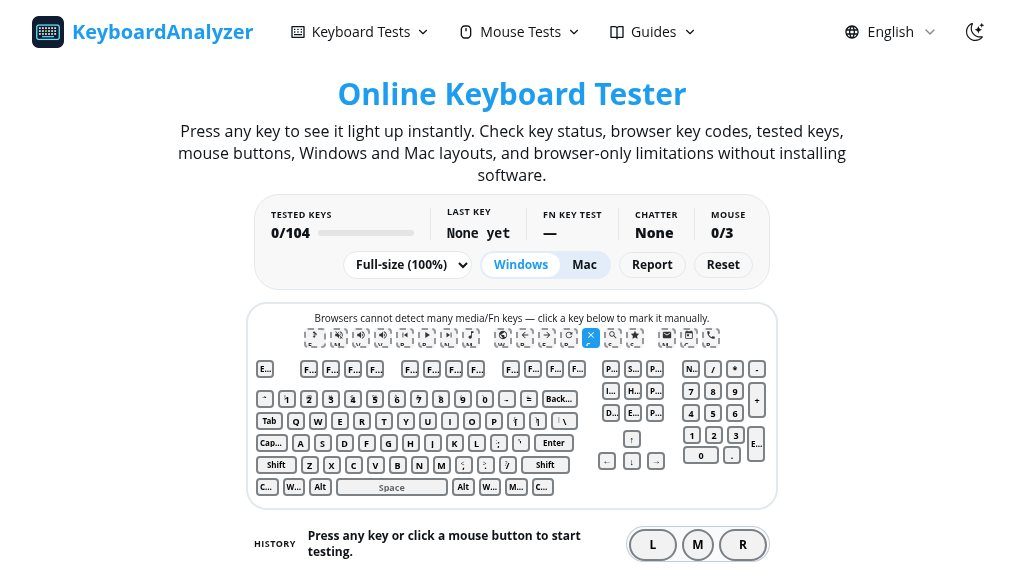
The central tester displays a virtual keyboard, the last key detected, browser key codes, currently pressed keys, tested-key counts, and mouse-button activity. Visitors can choose among several keyboard layouts and sizes, including full-size, TKL, 75%, 65%, and 60% options, as well as Windows and Mac layouts.
What Visitors Can Explore
The page extends beyond a basic key visualizer. Its available testing tools include:
- Keyboard input checks for dead or unresponsive keys
- Key-code and press/release event feedback
- Manual markers for Fn and media keys that browsers cannot detect reliably
- Mouse-button testing for left, middle, and right buttons
- Ghosting and NKRO checks for simultaneous key combinations
- Performance and latency checks covering response time, polling rate, and input stability
- Chatter, Snap Tap/SOCD, and spacebar tests
- Typing-speed tests with WPM and accuracy measurements
- Mouse utilities such as CPS, double-click, jitter, butterfly, Kohi, scroll-wheel, and polling-rate tests
This makes the site more useful as a small browser-based diagnostic collection than as a single-purpose keyboard checker.
Strengths
- Covers key detection, browser key codes, tested-key status, and mouse-button input in one browser page.
- Includes specialized checks for ghosting, chatter, latency, polling rate, Snap Tap/SOCD, and spacebar behavior.
- Offers multiple keyboard sizes and Windows or Mac layouts, helping visitors match the physical board more closely.
- Explains browser limits around Fn, media keys, system shortcuts, and mobile virtual keyboards.
Cons
- Browser restrictions mean Fn, media, brightness, and some system-level keys may require manual checking or may not appear at all.
- Complete testing is better suited to a desktop or laptop with a physical keyboard than to a phone or tablet.
- Results can be affected by drivers, layouts, Bluetooth, USB hubs, firmware, and other factors outside the page.
Potential Uses
A visitor can use the main test to perform a quick key-by-key inventory after buying a keyboard, troubleshooting an intermittent switch, checking a laptop keyboard, or comparing an external USB or Bluetooth device. The tested-key counter and reset control are practical when repeating the process with another keyboard or browser.
For competitive gaming or enthusiast hardware, the additional ghosting, latency, chatter, and Snap Tap/SOCD tests may help identify behavior worth investigating. The results should be treated as initial observations rather than a complete hardware diagnosis.
Audience and Fit
This is a reasonable fit for home users, gamers, repair troubleshooters, and anyone who wants a fast browser-based check. Desktop and laptop browsers with a real connected keyboard are the better environment; phones and tablets can display the page but cannot provide a complete physical-key test.
Before You Rely on It
Browser pages only receive the keyboard and mouse events that the operating system and browser expose. Fn keys, media controls, system shortcuts, firmware layers, secure input, wireless connections, USB hubs, and keyboard layouts can all affect the result. A key that fails to light up should be retested in another browser or on another computer before hardware is blamed.
The page states that key and mouse events are processed in the browser tab for live feedback and are not stored, but visitors should still avoid entering passwords or private text into diagnostic pages. A sensible next step is to compare repeated failures across devices, connections, and browsers, then inspect drivers, cables, Bluetooth, or the keyboard itself if the pattern remains consistent.
Embeds
Copy short script widgets for this listing. People often use Textfrog to search for their next personal or work tool. Encourage your community to leave reviews on Textfrog.
Review widget
A clean review badge with stars and review count.
Featured badge
A compact badge for products listed on Textfrog.
Similar Tools
Compare two texts online and see every difference highlighted instantly. with pr...
Convert JPG to PDF free in your browser. with practical details for online visit...
Free football data API for developers: fixtures, live scores, standings, teams, ...
Your agent built the site; let it finish the forms. with practical details for o...
Featured Links
Setvo: your workouts, your progress, your space. with practical details for onli...
Eduify is an online education platform that provides tools and resources for lea...